Thursday, October 17, 2013

List of Featured Cisco Access Points for Enterprises


Cisco Access Points---simplify your working environment by combining the mobility of wireless with the performance of wired networks.


      • Includes automatic interference mitigation for 802.11n performance protection
      • Helps enable remote troubleshooting for fast diagnostics and less downtime
      • Detects off-channel rogues using first access point with non-Wi-Fi detection
      • Enforces policy with intelligent identification of wireless devices


      • Extends flexibility with rugged, indoor, non-modular 802.11n access points
      • Uses current antenna portfolio in lightweight form factor
      • Allows quick installation on Cisco 1130/1240 mounting brackets

 Cisco 5500 Series Wireless LAN Controller


      • Integrates next generation wireless into highly scalable platform
      • Allows connection of up to 500 access points
      • Supports ClientLink, VideoStream, CleanAir Technology, and OfficeExtend

Wireless Control System
      • Reduces operational costs with built-in tools, guides, and templates
      • Improves IT efficiency through intuitive GUI and flexible ease of use
      • Minimizes IT staffing requirements through centralized operational control
      • Scales to small, midsize, and large-scale wireless LANs across all locations 

Cisco 3300 Series Mobility Services Engine
      • Simplifies provisioning and management of mobility services
      • Offers scalable and reliable multidevice, multinetwork application delivery
      • Facilitates broad partner ecosystem for mobile applications development
      • Locates interferer devices and determines impact zone
 
Notes: Wireless access is a great choice for easy, convenient internet and network access from anywhere you need it. And different products can allow you to extend the wireless range to just your apartment, your office building, or your entire campus.

More Cisco Access Point Topics:

Sunday, September 29, 2013

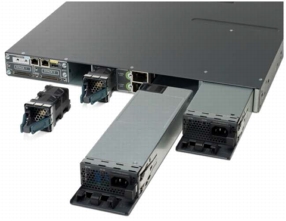
Tips for Power Supply for Cisco 3750-X and Catalyst 3560-X Switch

The Cisco Catalyst 3750-X and 3560-X Series Switches are an enterprise-class lines of stackable and standalone switches, respectively. These switches provide high availability, scalability, security, energy efficiency, and ease of operation with innovative features such as Cisco StackPower (available only on the Catalyst 3750-X), IEEE 802.3at Power over Ethernet Plus (PoE+) configurations, optional network modules, redundant power supplies, and Media Access Control Security (MACsec) features. 

Combining 10/100/1000 and Power over Ethernet Plus (PoE+) or GE SFP configurations with four optional uplinks, the Cisco Catalyst 3750-X and 3560-X Series Switches enhance worker productivity by enabling applications such as encryption, IP telephony, wireless, and video.

The Cisco Catalyst 3750-X and 3560-X Series Switches are built on the existing Cisco Catalyst 3750-E and 3560-E Series Switches, using the same port application-specific integrated circuit (ASIC), switch fabric, and Cisco IOS Software feature sets.

About Power Supply for Cisco Catalyst 3750-X & 3560-X Series Switches, you know that the Catalyst 3750-X Series and Cisco 3560-X Series Switches support dual redundant power supplies. The switch ships with one power supply by default and the second power supply can be purchased at the time of ordering the switch or at a later time. If only one power supply is installed, it should always be in the power supply bay 1. 


Table shows the different power supplies available in these switches and available PoE power.
Power Supply Models
Models
Default Power Supply
Available PoE Power
24 Port Data Switch
C3KX-PWR-350WAC
-
48 Port Data Switch
24 Port PoE Switch
435W
48 Port PoE Switch
48 Port Full PoE Switch
800W

More Related Cisco 3750 and Catalyst 3560 Switch Tips:

Sunday, September 22, 2013

Cisco Catalyst 2960-X and Catalyst 2960-XR Review

The Catalyst 2960 got stacking via the2960-S model a couple of years ago. It also got the ability to do static routes which was a nice feature. Cisco 2960-X series debut at Cisco Partner Summit 2013. Cisco released the new Catalyst 2960-X series by doubling its stacked port density, stacking bandwidth, buffers and CPU performance. It is the next generation of its wildly successful Catalyst 2K switches. The Cisco 2960-X and -XR are available in 24 or 48 port configurations. Uplinks are either 2x 10 Gbit SPF+ or 4x 1 Gbit SFP. The PoE models can support 370W or 740W of power.

The 2960-X Series provides up to 80 Gbps of stack bandwidth which is 2x more compared to the 2960-S. It is now also possible to stack up to 8 switches compared to the earlier maximum of 4. The 2960-S model uses FlexStack while the newer -X and -XR models uses FlexStack-Plus. FlexStack-Plus supports detecting stack port operational state in hardware and change the forwarding according to it. This takes 100 ms or less. The older model does it in CPU which can take 1 or 2 seconds.

Here are some notable differences between 2960-X and -XR compared to 2960-S.
  • Dual core CPU @ 600 MHz. 2960-S has single core
  • 2960-XR has support for dual power supplies
  • 256 MB of flash for -XR, 128 MB for -X. The S model has 64 MB
  • 512 MB of DRAM compared to 256 for 2960-S
  • 1k active VLANs compared to 255 for 2960-S
  • 48 Etherchannel groups for -XR, 24 for -X and 6 for -S
  • 4 MB of egress buffers instead of 2 MB
  • 4 SPAN sessions instead of 2
  • 32k MACs for -XR, 16k for -X and 8k for -S
  • 24k unicast routes for -XR, 16 static routes for -X and -S
The newer models also support Netflow lite, hibernation mode and EEE. The 2960-XR does support dynamic routing. It has support for RIP, OSPF stub, OSPFv3 stub, EIGRP stub, HSRP, VRRP and PIM.

Here are some performance numbers:
Cisco 2960-X Lan Lite has 100 Gbps of switching bandwidth and 64 active VLANS. The Catalyst 2960-X Lan Base has 216 Gbps of switching bandwidth and 1023 active VLANs. The same holds true for 2960-XR with IP Lite feature set. The 2960-S had a maximum of 255 VLANs and 176 Gbps switching bandwidth. Depending on model the 2960-X tops out at 130.9 Mpps compared to 101.2 for 2960-S.

The switches also have added support for IPv6. Notable features are:
  • IPv6 MLDv1 and v2 snooping
  • IPv6 First Hop Security (RA guard, source guard, and binding integrity guard
  • IPv6 ACLs
  • IPv6 QoS
  • HTTP/HTTPs over IPv6
  • SNMP over IPv6
  • Syslog over IPv6
More Reviews Related to Cisco Catalyst 2960-X Series:

Tuesday, September 17, 2013

Cisco Catalyst 2960-S Model Comparison

Introducing Catalyst 2960-S

l  24/48 10/100/1000 ports with fixed uplinks
l  Fixed Uplink Options: 4x1G or 2x10G SFP+
l  FlexStack Technology
Brings stackable ease-of-use features to the 2960 family, features 20G stacking links
l  Power over Ethernet
Full standards-based PoE on every port
PoE+ support for next-generation high-power devices
l  Sustainability-GREEN
Very low power for Gigabit Ethernet Switch
New EnergyWise functionality to control PHY power
Half the power of Catalyst 2960G
l  E-LLW, NBD and 90 day TAC support
LAN Lite and LAN Base Software Options
LAN Lite option provides entry-level Gig-E platform

Catalyst2960-S Characteristics

ü  10/100 Ethernet for Out Of Band (OOB) network mgmt new for C2960-S series
ü  USB Flash - type A, external Flash storage
ü  USB console (type B) and RJ45 console supported
ü  DRAM: 128MB
ü  On board Flash: 64MB
ü  Low Latency
ü  RPS support: CAB-E type cable. (CAB-RPS2300-E=)

Catalyst 2960-S FlexStack

n  FlexStack available with optional Module
Hot Swappable with two wire-speed 10G ports
n  Up to 4 switches in a stack
n  Unified management, control, and data plane (similar look and feel as StackWise)
n  3 FlexStack Cable lengths supported
0.5 meters, 1.0 meter, 3.0 meter

Catalyst 2960-S FlexStack Stacking

u  Cross-stack EtherChannel, SPAN, and FlexLink supported
EtherChannel physical links across stack members
u  Pre-Provisioning of stack members supported
u  Easy member addition and replacement
u  Configurable Stack Master
Following same Master election rules as StackWise Plus
u  Support same CISCO-STACKWISE-MIB
u  Single Spanning tree node: No spanning-tree across stack
u  Stack link topology change is handled in SW, not HW

Data flow recovery needs SW involvement

Catalyst 2960-S Key Differentiations
²  Catalyst 2960-S–Gigabit Ethernet Switch
LAN Base & LAN Lite models available
²  Stacking with FlexStack technology
²  10 Gigabit UpLinks with SFP+ form factor
²  802.3at POE+; Full POE power with 740W or 370W budgets
²  Low power consumption–Lowest in industry (Fixed Gig Switches)
²  Very Low Latency
²  Line rate all interfaces
²  Enhanced LLW

Catalyst 2960-S Model comparison

More Related Cisco Catalyst Switches:

Tuesday, August 20, 2013

Configure DHCP Snooping on a Cisco Catalyst Switch


“At work I've got a cisco 3750 switch and few end devices which of course are company proprietary, connected to this switch in a separate VLAN. Now these end devices generate dhcp traffic "request" and is being propagated across all the sites where these devices are connected. 

Now I've been reading stuff about dhcp snooping features which is great but in this instance these end devices don't have a DHCP server. In this scenario all these end end devices have got static ip addresses allocated.

Also my senior engineer being very narrow minded wants me to implement this change only on the interface level and not on the configuration level.

Can someone please confirm if I can just only enable "ip dhcp snooping trust" on the interface level which i believe will stop the dhcp traffic?”

The above question is about DHCP snoopingconfiguration. Here we will list some related tech tips and examples to give a response.

Every example in the response post has been tested in a lab environment with a Cisco 3550, Infoblox DHCP servers, a Netgear router as a "rogue" dhcp server, and a MacBook Pro as a client. The 3550 is configured with ip routing and a layer 3 interface on the subnet where the DHCP servers are located (10.0.10.0/24). VLAN 20 has been created on the 3550 with an interface ip address of 10.0.20.254/24. All the DHCP server configuration and helper addresses were tested and working prior to implementing DHCP snooping to eliminate any doubt as to whether the DHCP snooping configuration is working or not. So, let's get started.

For DHCP snooping to work, you have to enable it globally. That is done with the following global configuration command:
Switch(config)#ip dhcp snooping

You also have to tell the switch which VLANs to monitor. In a production environment, this would be the client VLANs, not a transit VLAN that leads to the rest of the network. This is done with the following command:
Switch(config)#ip dhcp snooping vlan 20

At this point DHCP snooping is configured and enabled. There are several default settings that can be modified later, but that can be delt with after we verify things are working. Here is the basic show command to verify DHCP snooping is working (specifically the top few lines):
Switch#show ip dhcp snooping
Switch DHCP snooping is enabled
DHCP snooping is configured on following VLANs:

20
DHCP snooping is operational on following VLANs:

20
DHCP snooping is configured on the following L3 Interfaces:

Insertion of option 82 is enabled
   circuit-id format: vlan-mod-port
    remote-id format: MAC
Option 82 on untrusted port is not allowed
Verification of hwaddr field is enabled
Verification of giaddr field is enabled
DHCP snooping trust/rate is configured on the following Interfaces:

Interface                    Trusted     Rate limit (pps)
------------------------     -------     ----------------

Once you verify DHCP snooping is working, you can verify DHCP lease information starts to populate the DHCP snooping binding table on the switch with the following command:
Switch#show ip dhcp snooping binding
MacAddress          IpAddress        Lease(sec)  Type           VLAN  Interface
------------------  ---------------  ----------  -------------  ----  --------------------
AA:2C:DD:09:D1:CD   10.0.20.28       28781       dhcp-snooping   20    FastEthernet0/13
Total number of bindings: 1

If you have a DHCP server plugged into a switch with DHCP snooping enabled, or if you have a layer 2 LAN port connected to an upstream switch where the DHCP server resides, you'll have to trust that port. To do this, enter the following command in interface configuration mode:
Switch(config-if)#ip dhcp snooping trust

Any DHCP responses that come from an untrusted port (all the other ports) will simply be dropped without any notification. To test this out, after this was all configured and working, I connected a Netgear router with DHCP enabled into another VLAN 20 access port on the 3550. I forced a DHCP request to be sent out by the client and nothing happened. No log messages or warnings, nothing. Just to be sure the rogue DHCP server was working; I disabled snooping and unplugged the 3550 uplink to the production network. The client received a 192.168.1.2 ip address immediately. I released the IP, reconfigured snooping and tested again. The client received an IP from the authorized DHCP server and nothing happened with the fake DHCP server port.

I wish the switch was smart enough to put the switch-port connected to the rogue DHCP server into err-disable mode, but at least it stops the unauthorized DHCP server from actually handing out IP leases.

This concludes the basic DHCP snooping configuration. For additional information regarding DHCP snooping configuration options, check out these links:
http://www.cisco.com/en/US/docs/switches/lan/catalyst3750/software/relea...
http://www.cisco.com/en/US/docs/switches/lan/catalyst4500/12.1/12ew/conf...
http://www.cisco.com/en/US/docs/switches/lan/catalyst6500/ios/12.2SXF/na...

Also, for reference, here are the relevant parts of my 3550 lab configuration:
interface FastEthernet0/1

 description Layer 3 uplink to production network

 no switchport
 ip address 10.0.10.253 255.255.255.0
 speed 100
 duplex full
!
interface FastEthernet0/12

 description Rogue DHCP server

 switchport access vlan 20
 switchport mode access
 spanning-tree portfast
!
interface FastEthernet0/13

 description Client

 switchport access vlan 20
 switchport mode access
 spanning-tree portfast
!
interface Vlan20
 ip address 10.0.20.254 255.255.255.0
 ip helper-address 10.0.10.106
 ip helper-address 10.0.10.107

One final thought. If you are rolling this out into production, be sure to do so during a change window and test a client DHCP request with ipconfig /release and ipconfig /renew to be sure it can get an IP address and it shows up in the binding table.

Notes: This configuration was tested in a lab environment. If you use this configuration to modify a production environment, you do so at your own risk. The information in this post is provided as an example so you can custom tailor it to your own network. Don't blame me if this information is misused and causes an outage to production systems.


More Related Cisco Tech Tips:

Friday, August 9, 2013

Configure a Cisco Router to be a Frame Relay Switch

If you are studying for the TSHOOT exam, it is a good idea to familiarize yourself with the topology. I've been working on creating a lab that mocks the TSHOOT topology and it has forced me to recall how to setup a Cisco router to act like a Frame Relay switch. 

Here is the topology that I've built. As you can see, it closely resembles the topology that Cisco has provided on their site. Since their doc doesn't provide specific DLCIs, I've used the most logical numbers I could think of.

The first step in configuring a Cisco router to act like a frame relay switch is to enable frame relay switching:
FR(config)#frame-relay switching

Once enabled, you then configure the serial interfaces connected to the other routers.
interface Serial0/0
 description Link to R4
 no ip address
 encapsulation frame-relay
 clock rate 64000
 no frame-relay inverse-arp
 frame-relay lmi-type ansi
 frame-relay intf-type dce
 frame-relay route 403 interface Serial0/1 304
!
interface Serial0/1
 description Link to R3
 no ip address
 encapsulation frame-relay
 clock rate 64000
 no frame-relay inverse-arp
 frame-relay lmi-type ansi
 frame-relay intf-type dce
 frame-relay route 302 interface Serial0/2 203
 frame-relay route 304 interface Serial0/0 403
!
interface Serial0/2
 description Link to R2
 no ip address
 encapsulation frame-relay
 clock rate 64000
 no frame-relay inverse-arp
 frame-relay lmi-type ansi
 frame-relay intf-type dce
 frame-relay route 201 interface Serial0/3 102
 frame-relay route 203 interface Serial0/1 302
!
interface Serial0/3
 description Link to R1
 no ip address
 encapsulation frame-relay
 clock rate 64000
 no frame-relay inverse-arp
 frame-relay lmi-type ansi
 frame-relay intf-type dce
 frame-relay route 102 interface Serial0/2 201

Then all you need to do is configure the other routers and connect them to your "switch". Here are the configs for the other router serial interfaces for reference:
!R1
interface Serial0/0
 no ip address
 encapsulation frame-relay
 no frame-relay inverse-arp
 frame-relay lmi-type ansi
!
interface Serial0/0.12 point-to-point
 ip address 10.1.1.1 255.255.255.252
 frame-relay interface-dlci 102

!R2
interface Serial0/0
 no ip address
 encapsulation frame-relay
 no frame-relay inverse-arp
 frame-relay lmi-type ansi
!
interface Serial0/0.12 point-to-point
 ip address 10.1.1.2 255.255.255.252
 frame-relay interface-dlci 201  
!
interface Serial0/0.23 point-to-point
 ip address 10.1.1.5 255.255.255.252
 frame-relay interface-dlci 203  

!R3
interface Serial0/0
 no ip address
 encapsulation frame-relay
 no frame-relay inverse-arp
 frame-relay lmi-type ansi
!
interface Serial0/0.23 point-to-point
 ip address 10.1.1.6 255.255.255.252
 frame-relay interface-dlci 302  
!
interface Serial0/0.34 point-to-point
 ip address 10.1.1.9 255.255.255.252
 frame-relay interface-dlci 304

!R4
interface Serial0/0
 no ip address
 encapsulation frame-relay
 no frame-relay inverse-arp
 frame-relay lmi-type ansi
!
interface Serial0/0.34 point-to-point
 ip address 10.1.1.10 255.255.255.252
 frame-relay interface-dlci 403  

References used for this configuration are as follows:
Cisco Press Book - Cisco Frame Relay Configurations Chapter (ciscopress.com)
Comprehensive Guide to Configuring and Troubleshooting Frame Relay (cisco.com)
TSHOOT Topology PDF (cisco.com)
---From http://tekcert.com/

More Cisco Tech Tips: